



















Game Sheet App Instructions for Scorekeepers
This guide will cover how to score a game. After signing into the Ramp Game Sheet app, you'll be able to access the homepage where you'll see all games for your team.
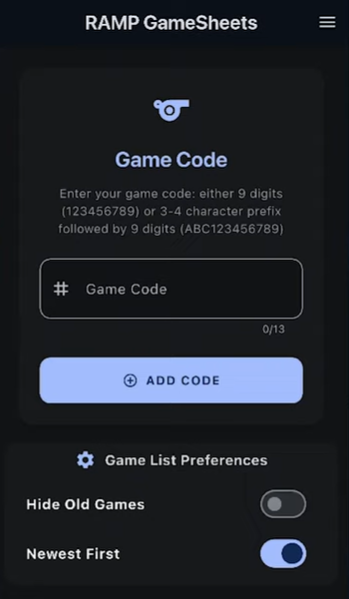
The coach or manager will provide you with the game code for the scorekeeper. These codes are either 9 or 13 digits long and can be entered in the game code field at the top of the page. To enter the game code, simply tap the game code field and type in the game code you've been provided. After entering your code, hit the add code button or check mark depending on your phone and you'll be taken to that game to start the entering process.
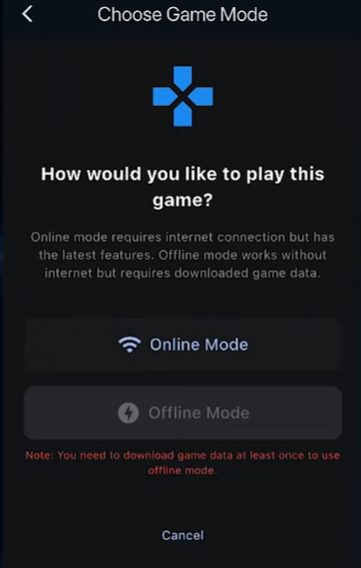
Before you can enter the game, you can choose to work in online mode or offline mode. The first time it opens, you'll be required to mark it as online mode so it can pull down game data for you to use. Once you have done this once, you'll be able to open this game in offline mode and use the data you've saved to your local device if you don't have internet inside of the facility you are working in. Entering online mode, the game data will be pulled down to your device and you'll have full access to the game.
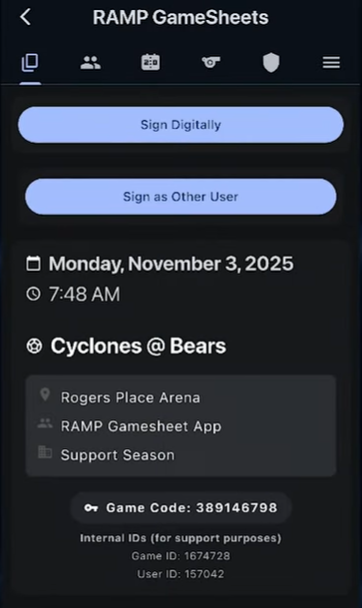
The first page you'll be brought to is the game homepage. This has details about the game, options to sign for yourself or to allow other users to sign if they don't have access to a device by hitting the sign as other user button.
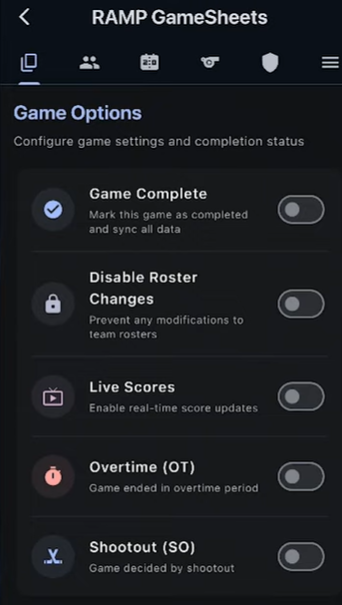
Under the Game Options, you can:
- Mark the game as completed
- Disable roster changes
- Mark live scores to update a website in real time
- Mark a game as overtime
- Mark a game as shootout.
At the very bottom of the page, you also have access to codes for other parts of this game. The codes listed here are the game sheet code, which we entered to access, the home and visiting code, which gives coaches access to update the roster and view game history information, as well as the official code, which allows officials to access the game, digitally sign, and even leave game writeups or notes on this game.
To start working on the game as a scorekeeper, you can review the rosters on the rosters page which is the second tab at the top. Here we can see the rosters for both teams as well as have options for sort controls and filters. When viewing this, you'll be able to see if teams have selected any players. Once the coaches have players and staff selected for both teams, we can move on to the goals page.
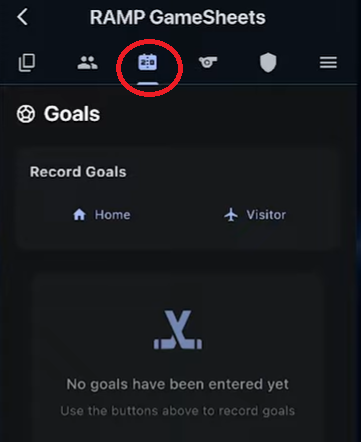
The goals page is where you'll be able to enter the scoring results for both teams. To do this, simply hit the home or visitor button on the goals page.
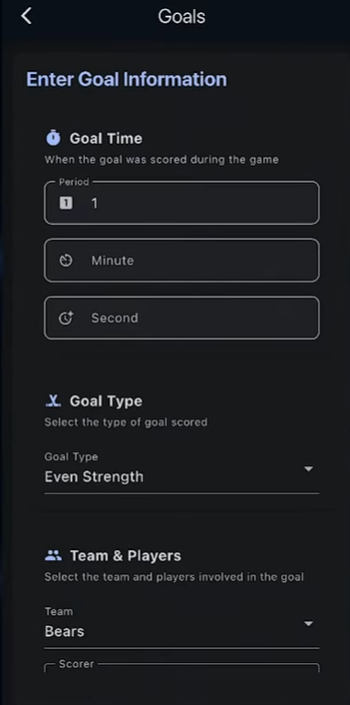
It'll give you the option to select the period, minute, and second of the goal that is on the score clock. We do not require the minute and second however the game sheet app will not allow these fields to be blank so do the best you can. Scrolling down, the option to select a goal type if it was not even strength and change it here. Then you can select who scored.
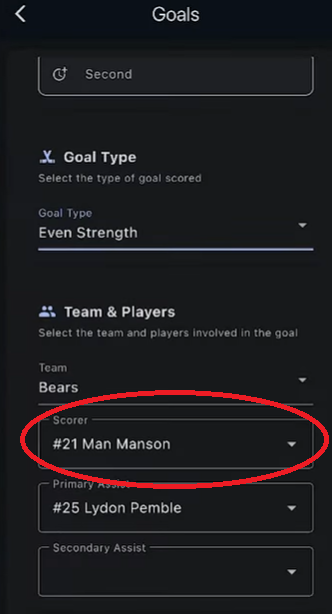
The options that will appear here are based on who has been selected on the roster pages. After selecting your goal scorer you'll be able to hit add goal. 3on3 Superleague does not record assists so you can leave this field blank. Once the fields are filled in you can hit the add goal button.
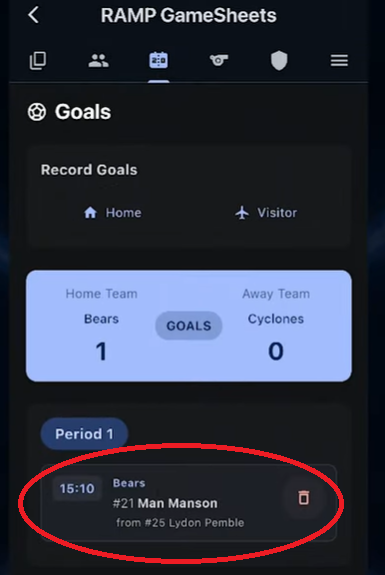
Once a goal has been added from this goals page, you'll be able to review it by tapping on the goal in question to open it up, or you can delete it by hitting the trash button next to the goal. A deleted goal will still appear in the list in case it needs to be restored or if there was a mistake made, you can update it and then restore it afterwards.
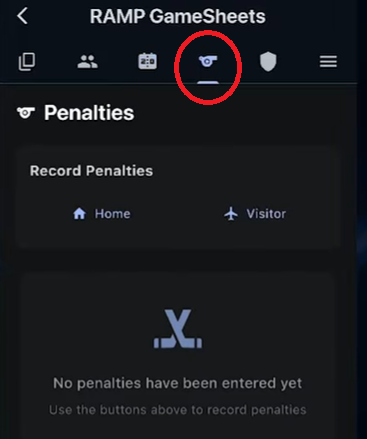
Underneath of the penalties tab at the top, you can add penalties the same way for the home and visitor team by tapping the button in question for each team.
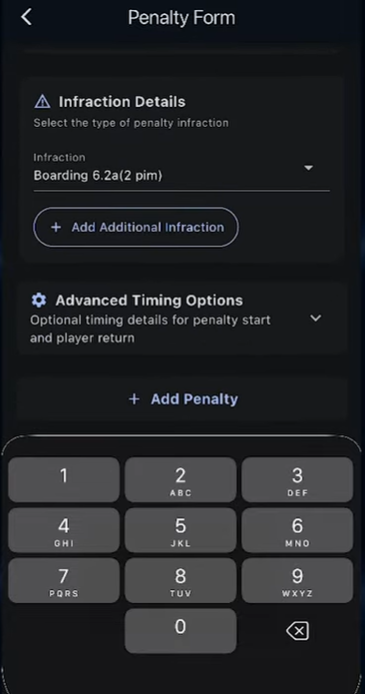
At this point you can enter again the time and second that is on the clock. Select a player to be penalized as well as an optional served field and select an offense. Once you have added an offense, you have the option to add additional offenses if multiple penalties were taken by the same player by hitting the add additional infractions button below it. You will then be able to select an offense for the additional infraction. Once you have filled out all of these fields, hit the “Add Penalty” and this will be saved.
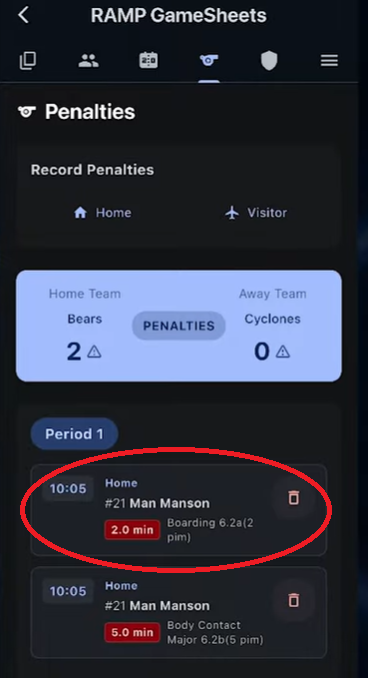
The infraction is now appearing and can be edited by tapping on it or deleted the same way as goals by deleting it. Again, you can always restore a deleted item by tapping it.
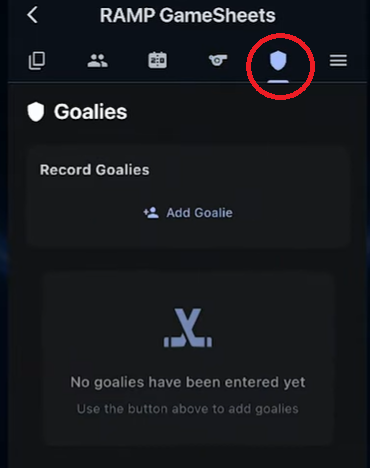
After penalties, we have goalie stats where we can enter at the end of the game the goalie statistics for both goalies.
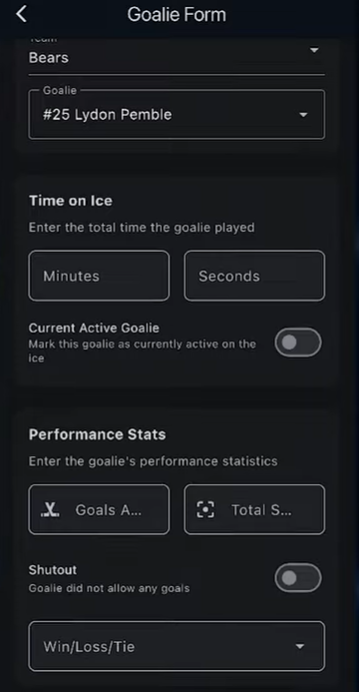
Simply hit the “Add Goalie” button, select a team, select which player was the goalie, and enter the time on ice, performance stats, win loss, tie, and hit the add goalie button. Similarly, goalie stats can be entered at the end of the game and edited as needed. We do not require goalie stats so completing these is optional for each team.
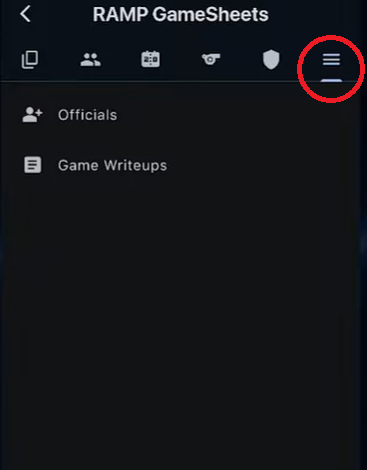
Finally, underneath of the final tab, we have the ability to add officials to the game. Officials can add themselves via the official’s code. However, if they are coming to the timekeeper’s box to enter themselves, you can add them here by hitting the official’s button, add official, and entering their name and position. Any officials that have already been added to the game will appear on this page. Finally, depending on your setup, you have access to add or view game writeups via the game write-ups tab by hitting this option. As a timekeeper, you may see the add write up button depending on the settings from your league. If you do not see the add writeup button, that setting is currently restricted for you.
And that covers the basic functionality of the scorekeeper role. It's important to remember when scoring a game and a game is finished to always mark it as completed and sign off on it on the homepage.
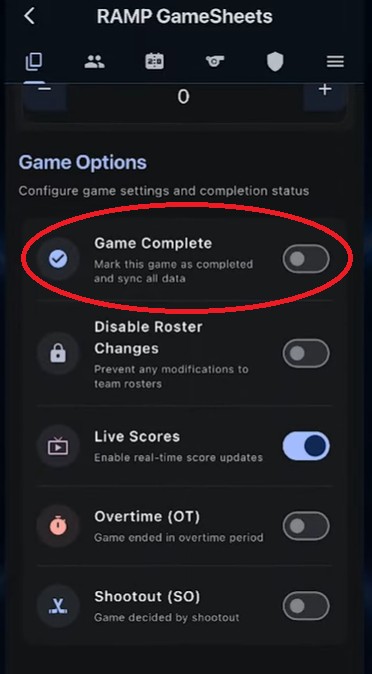
To finalize the game, scroll down and mark the game as completed.
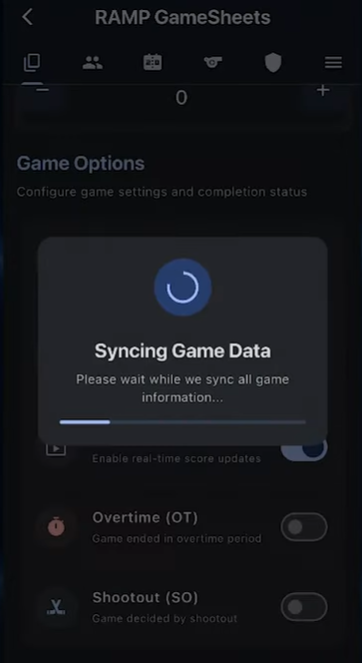
At this point the app will double check that all game information has been properly synced from this game back to the league.
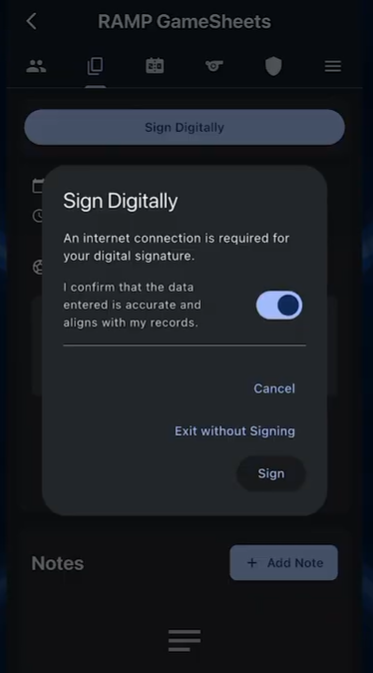
Additionally, from here, you can sign digitally, confirming that this information is correct, and sign off on the game. With the game now marked as completed, we'll now have access to an additional summaries page where we can see all the information of this game in one single page, being able to scroll through all of it in one location. Additionally, from here, you can always go back to the other pages to access the information on them as needed.
Please keep in mind that once a game is marked as completed, you may be locked out from making additional changes depending on the league settings. Leagues may leave games open for 15 or 30 minutes after a game is completed, or may lock them immediately following a game being marked as finished.
If you completed the scorekeeping in offline mode, it will need to be synced via a sync button on the main page. Because this information was done in offline mode, this hasn't been pushed to the league. Additionally, marking the game as completed will attempt to sync any information that has not already been synced.